 Problem solving
Direct laptop connection
If the connection does not work when the laptop with Windows is directly connected to an Internet outlet, but this site opens, you can follow several steps that may help solve the problem.
- Perform a standard network reset.
- Run the command prompt as an administrator.
- Enter the commands sequentially. After each one, press Enter on the keyboard.
netsh winsock resetnetsh int ip reset allnetsh winhttp reset proxyipconfig /flushdns
- Restart your computer
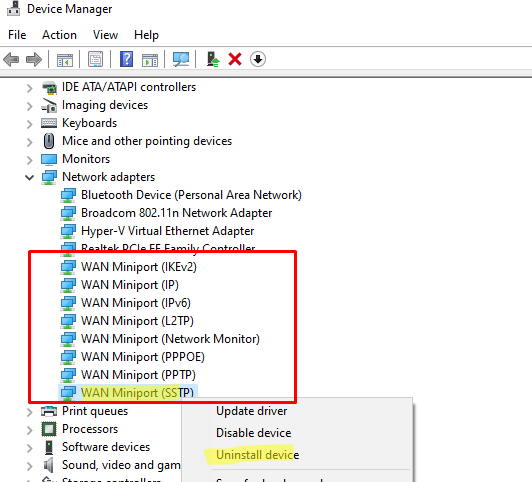
- Reinstall the virtual WAN Miniports adapters.
- Launch the Device Manager (devmgmt.msc), expand the "Network Adapters" section.
- Right-click on each of the devices listed below sequentially and select "Uninstall device":
- WAN Miniport (PPTP)
- WAN Miniport (PPPOE)
- WAN Miniport (Network Monitor)
- WAN Miniport (L2TP)
- WAN Miniport (IPv6)
- WAN Miniport (IP)
- WAN Miniport (IKEv2)
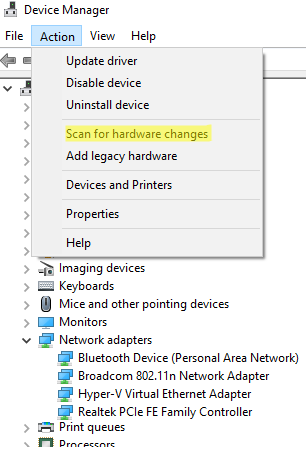
- Now you need to re-scan the hardware configuration (Action -> Scan for Hardware changes), and wait for Windows to detect and install drivers for WAN Miniports devices.
- VPN clients can block the connection. You should turn them off while checking the connection.
- The connection may be blocked by the firewall. Reset the Windows Firewall settings to their default settings. You can disable it temporarily to test the connection, but don't forget to turn it back on later.
- Perform an integrity check of the system files. The presence of corrupted system files can lead to many problems.
- Run the command prompt as an administrator.
- Enter the commands sequentially. After each one, press Enter on the keyboard.
sfc /scannow
- Check the proxy server settings in the browser, sometimes they are there, disable the use of a proxy server.
- Viruses can block the connection. Perform a full virus scan of the system with your antivirus.
- Try to reinstall/update the driver of the port that the connection is using, if it is a wired connection, the ethernet driver, if it is wireless, the wifi driver.